
Resetting a student password
2 min read · Updated July 2026
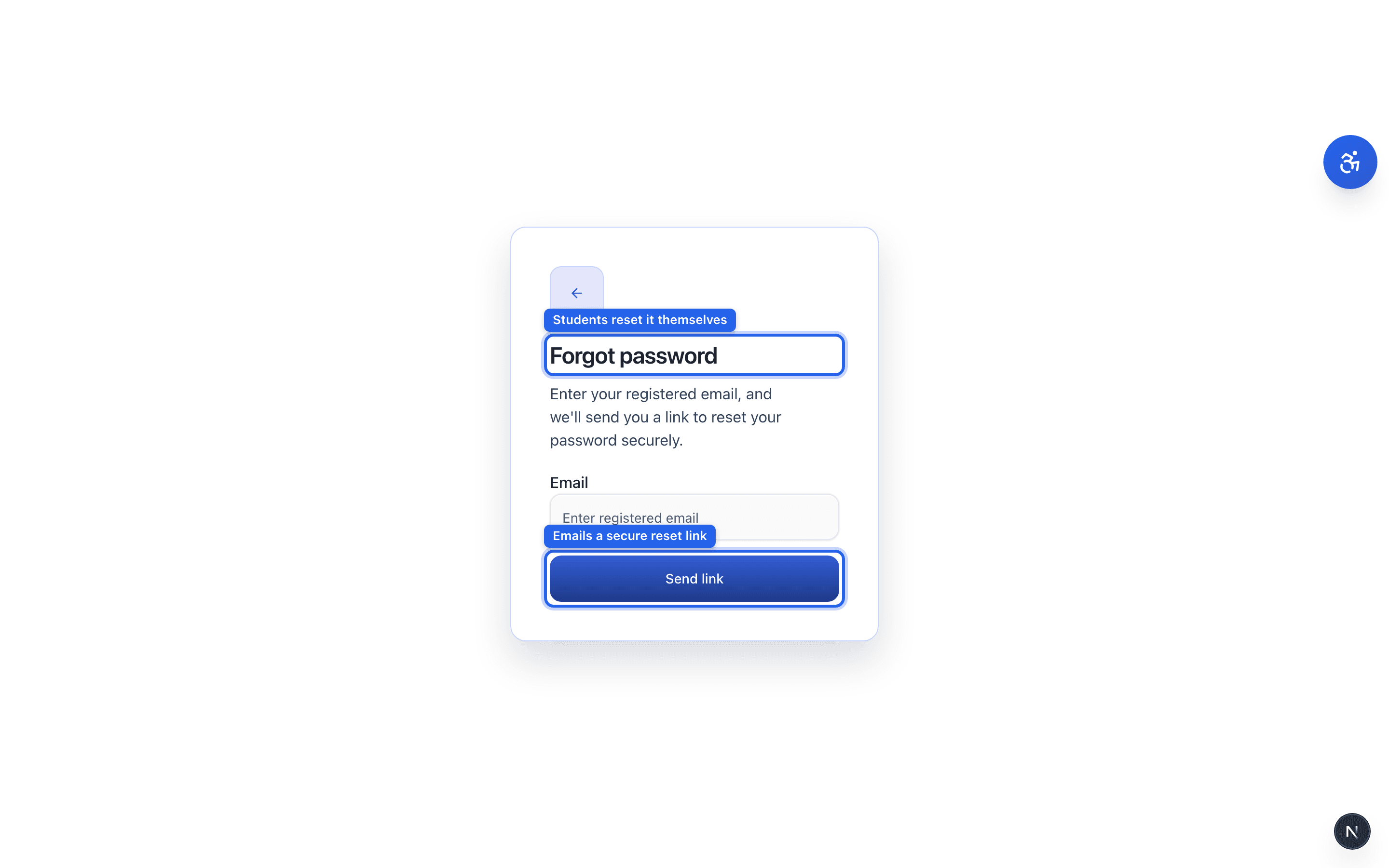
Students reset their own password
MyThorneAI doesn't expose an admin “reset password” button — students recover access themselves, which keeps their credentials private.
- 1On the sign-in page, the student clicks Forgot password?
- 2They enter their registered email and click Send link.
- 3They open the secure reset link in their inbox and choose a new password.
School email filters sometimes hold the reset message — tell students to check spam, and make sure the email on their account is one they can actually open.
Still need help?
Reach the team — ask a question, report a bug, or request a feature. Signed in? Contact us from your dashboard.