
Customizing a lesson for your class
5 min read · Updated July 2026
Editing forks your own copy
Every lesson starts from a shared master. When you open a lesson and click Edit, your first change forks a local copy for your class — the master stays untouched, and so does every other teacher's version.
- 1Open your class, go to the unit, and click Edit on the lesson you want to change.
- 2Edit the blocks — text, cards, vocabulary, Quick Checks, images, and layout.
- 3Use Student preview to see it exactly as your students will.
- 4Click Save — your class now uses your copy. Discard drops your changes back to the master.
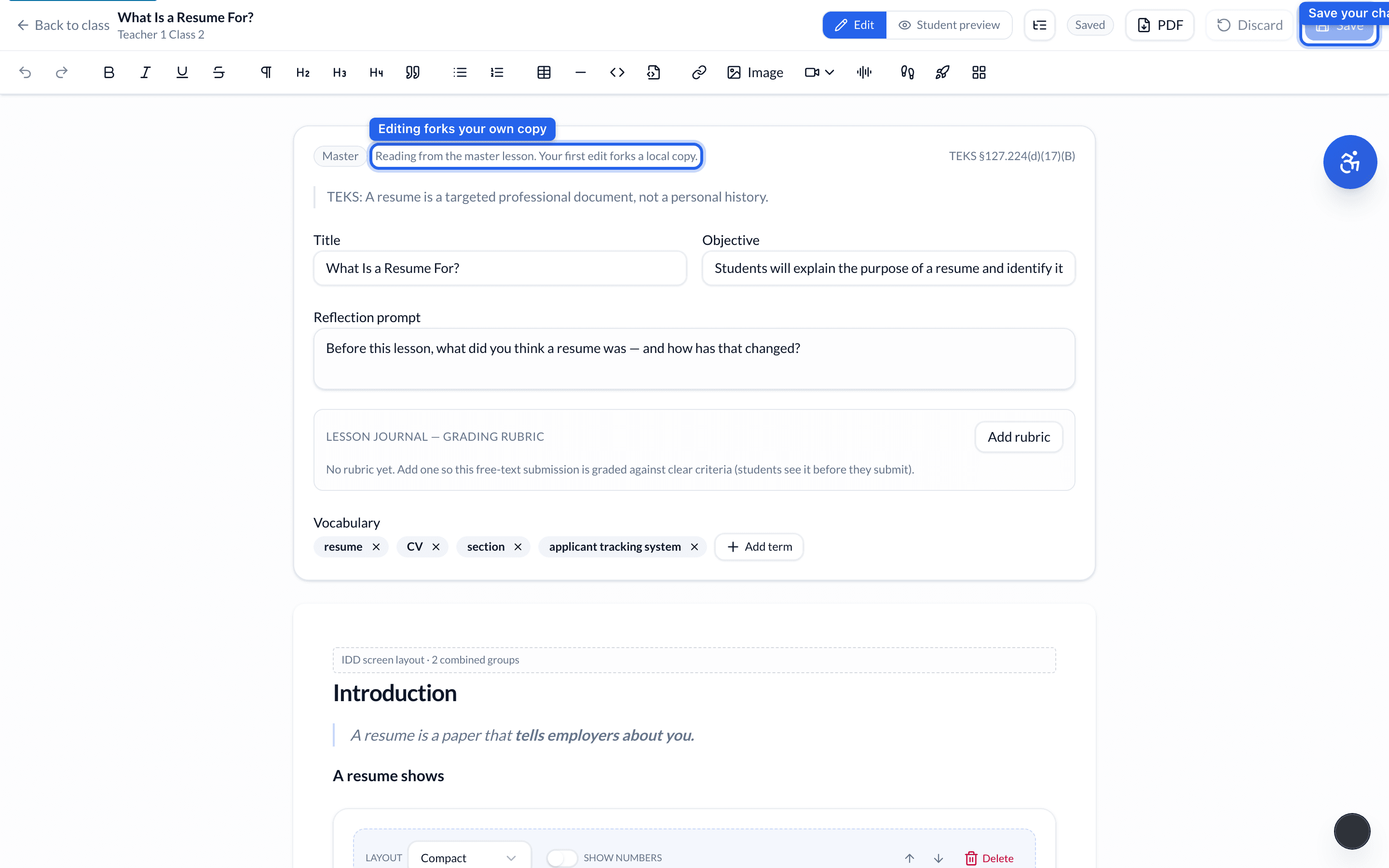
Every block has its own settings (layout, icons, widgets) — start from the master and tweak, rather than rebuilding from scratch.
Still need help?
Reach the team — ask a question, report a bug, or request a feature. Signed in? Contact us from your dashboard.