
Reviewing student progress
5 min read · Updated July 2026 · includes a 2:17 video demo
The class progress view
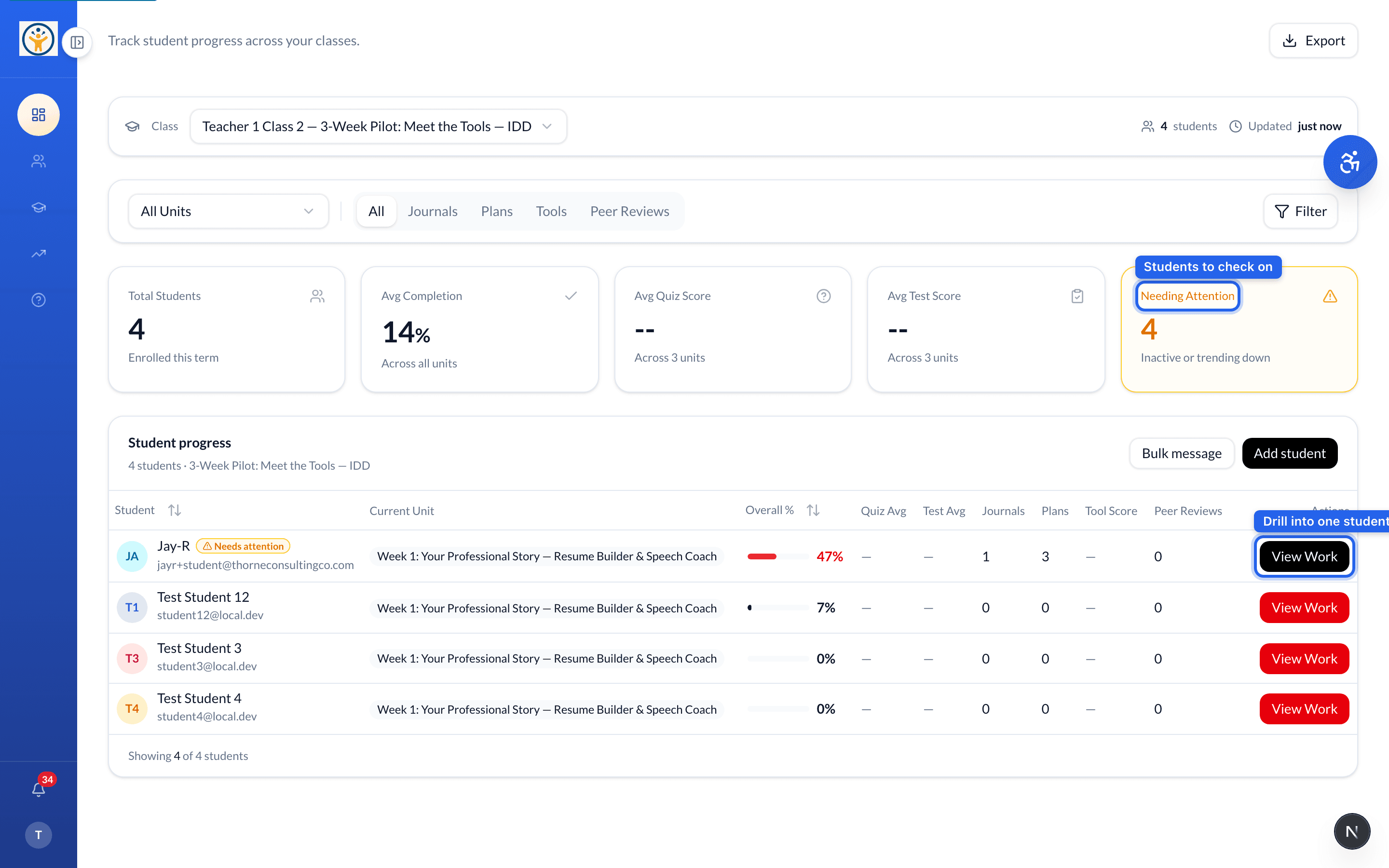
Open the manage console and pick a class from the Class selector at the top. The summary cards show Total Students, Avg Completion, Avg Quiz Score, and Avg Test Score — plus Needing Attention, which counts students who are inactive or trending down.
The Student progress table lists every student with their current unit, overall completion, and per-area scores (quizzes, tests, journals, plans, tools, and peer reviews). A "Needs attention" badge flags anyone who's slipping.
Drilling into one student
Click View Work on any student to open their attempt history, per-activity detail, and the feedback they received. Use Export to pull the whole class to CSV, or Bulk message to nudge several students at once.
Watch the Needing Attention card at the start of each week — it surfaces disengaged students faster than scanning scores does.
Still need help?
Reach the team — ask a question, report a bug, or request a feature. Signed in? Contact us from your dashboard.