
Inviting students with a join code
3 min read · Updated July 2026
How join codes work
Every class can have its own six-character join code. A signed-in student who enters the code lands directly in your class — no roster upload, no manual approval.
- 1Open your class and find the Join Code panel on the Overview tab.
- 2Click Generate Code to create one — there's no active code until you do.
- 3Share the code with your students; they enter it on their Join a Class page.
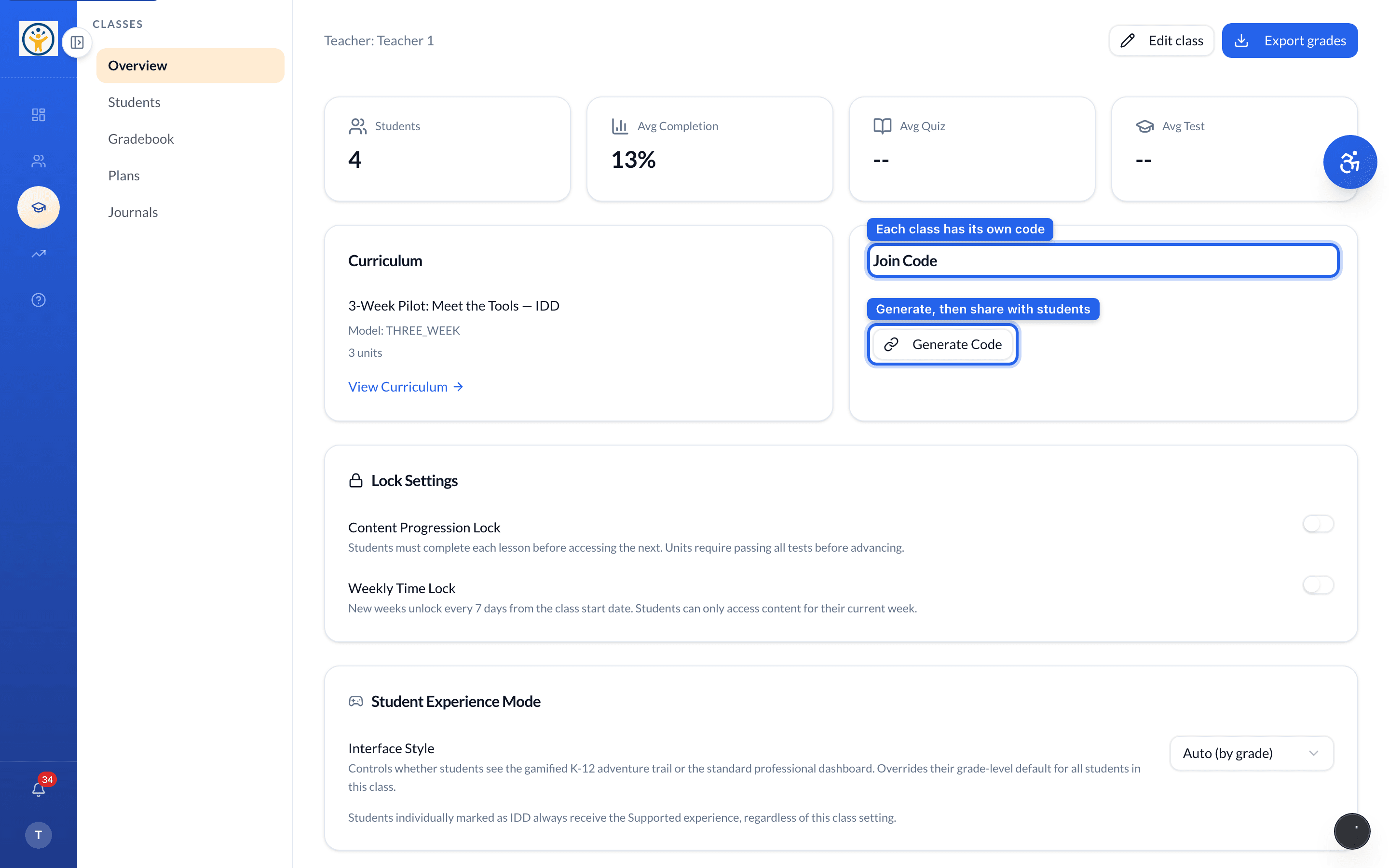
Regenerate the code any time from the same panel if it leaks beyond your class.
Troubleshooting
“Code not recognized” usually means the code was regenerated after it was shared — share the current one from the class Overview. A student who isn't in any class can always join later from their Join a Class page.
Still need help?
Reach the team — ask a question, report a bug, or request a feature. Signed in? Contact us from your dashboard.